 Search Tips
SV Price Requests
If your Change Request will have an impact on a Subcontract on the Job, you can create a SV Price Request from within the Change Request form to get a price for the potential Change Order. Workflows can be set up to turn the SV Price Request into a Subcontract Change Order once it is approved.
SV Price Requests are also referred to as SCO Price requests depending on your conventions. SV being the acronym for Subcontract Variation and SCO referring to a Subcontract Change Order.
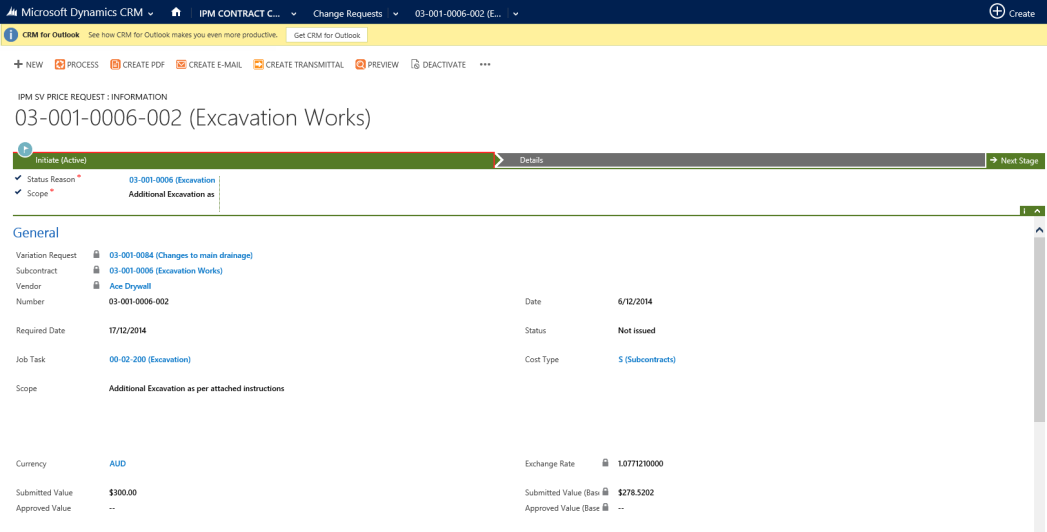
.To Create a SCO Price Request
- Click SCO Price Requests in the drop down menu of the Change Request form
- Click Add New IPM SCO Price Request
- This will bring up the new SCO Price Request form
- Much of the information from the Change Request has already been prefilled for you
- You can the select the Subcontract by clicking and choosing from the list
- Once you choose a Subcontract, the Vendor and Number will automatically fill
- Next, select the Required Date by clicking on the Calendar
- If necessary, update the Status by clicking on the drop down list
- Enter the associated Job Task by clicking and selecting from the list
- Enter the appropriate Cost Type by clicking and selecting from the list
- Enter the Scope
- Enter the Submitted Value
- The Submitted Value (Base) will automatically fill according to the Exchange Rate
- Click Save to gain access to other components in the left hand menu, such as Send To Contacts and Drawings
- Add these if necessary
- Once all the other necessary information has been added to your SCO Price Request, Save and Close the main form Note: A workflow can be set up to automatically create a Subcontract Change Order once the SCO Price Request is approved